Hosting wordpress site with emails for completely free
If you want to start blogging and you seem to think like just give it a shot once, and then you found that for getting started with a wordpress site, you have to pay for lots of stuff from hosting to email hosting but in this post you will find the secret recipe that I even use for this blog I don't pay anything for this blog.
Google cloud platform provides a free tier which allows you to have a VM instance of 600 Mb of ram and 30 GB of storage. This you could use for the hosting. and for the emails use Zoho's free tier which allows 5GB of storage for 5 emails accounts which is awesome
In the post about truths of shared hosting click here to read, we discovered about the flaw of max inodes limit which is really shit. So I bought four shared hosting and really fell in love with dreamhost, read inside the article on why I chose dreamhost.
But as the conclusion I actually didn't had much freedom as I thought I would get with a shared hosting provider even though they are providing ssh access.
So, that's why I wanted to use the good old VPS server, if you don't know what's a VPS server then it is a virtual server and you can do anything with it I mean anything you're capable of doing with that.
While I was checking which one should I use digitalocean or aws or gcp. I love digitalocean it has a clean UI and easy to do everything and most stuff's are so easy if you want to get started in cloud networking.
So I was about to create it inside digitalocean for 5$ droplet per month and thought once my site gets enough traffic I will switch over to higher droplet.
But then I found out about the gcp's free tier (GCP means google cloud platform), I thought why not let's try it then I find is it perfect in the case for me.
Creating an account in gcp
Let's create an account in google cloud platform for that you need a gmail id and billing detail like your debit card or credit card number your address and mobile number that's all
Follow this video for creating a google cloud platform account. Once you created it then you can follow along.
https://www.youtube.com/watch?v=iZgD6p0slTU
Let's see how to do everything one by one
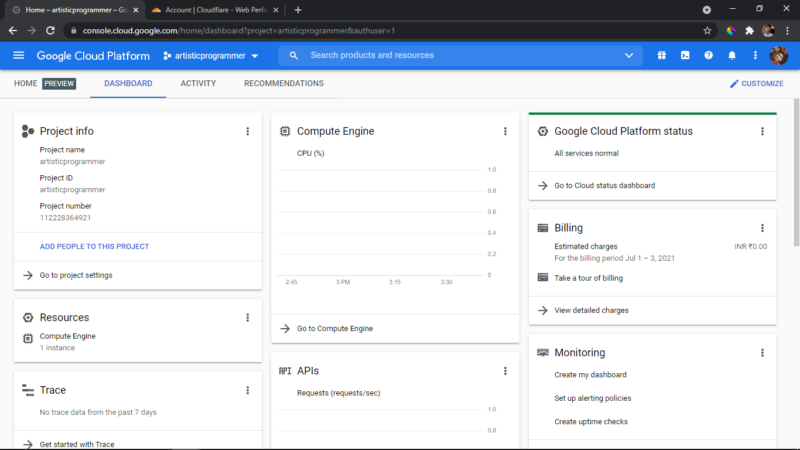
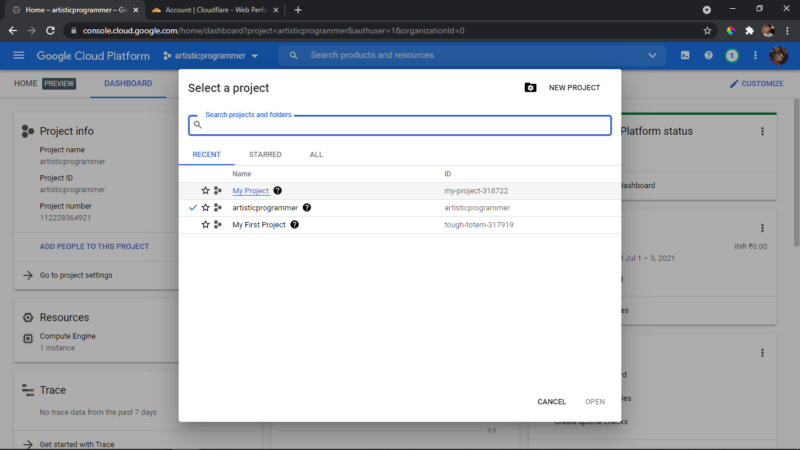
In the dashboard you should see something like this then click on the project, here you can see it in the header as artisticprogrammer.
That should open a menu like this now click on the button called new project
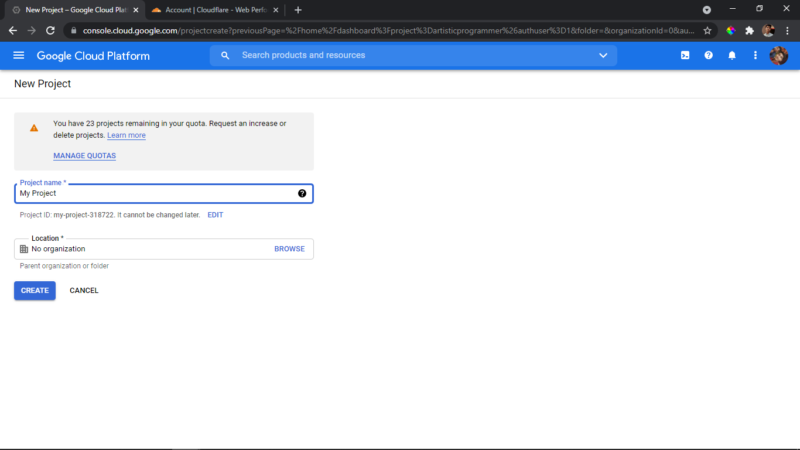
and name your project what you want, I am naming here it as my project.
Now in the header you should see something like free trial status or an gift icon click on that
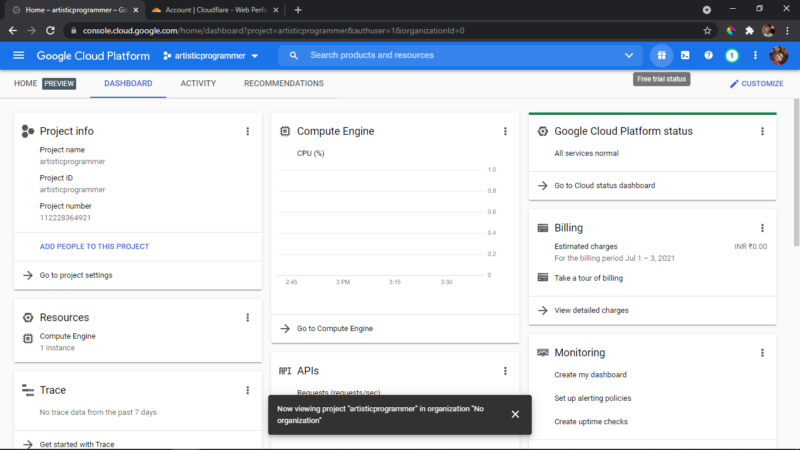
and a new header apears, click on activate,
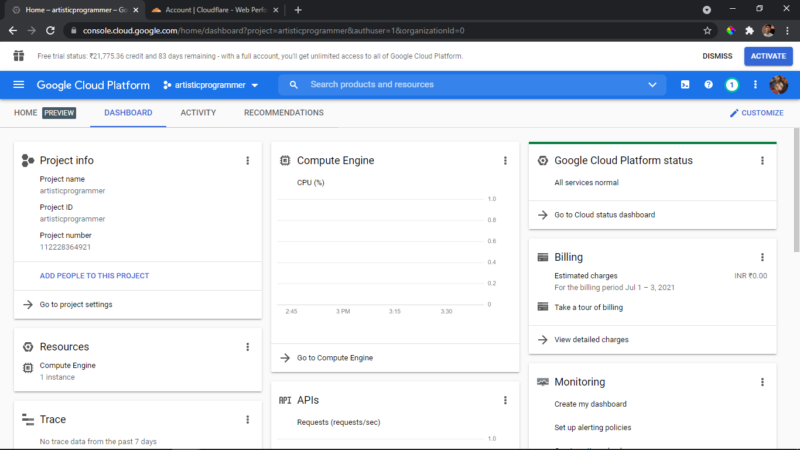
and click again on activate for activating our free trial credits because they expire after 90 days so use it quick and wisely,
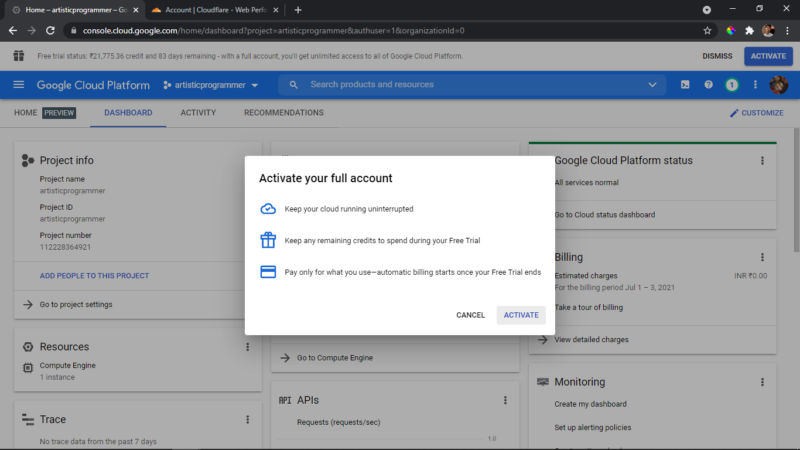
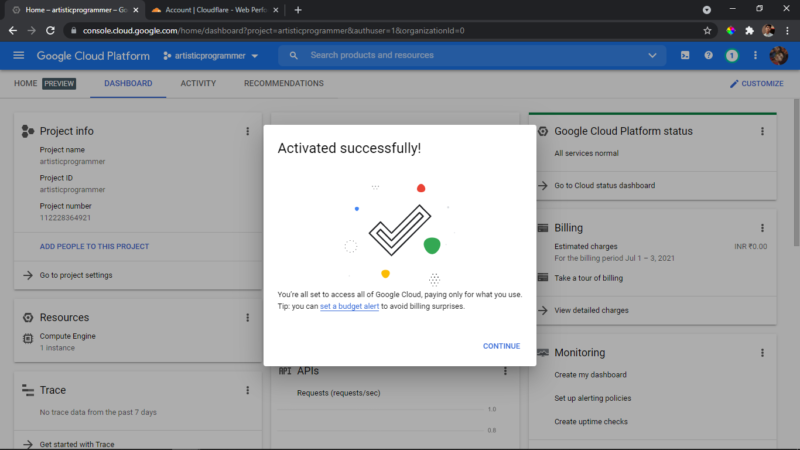
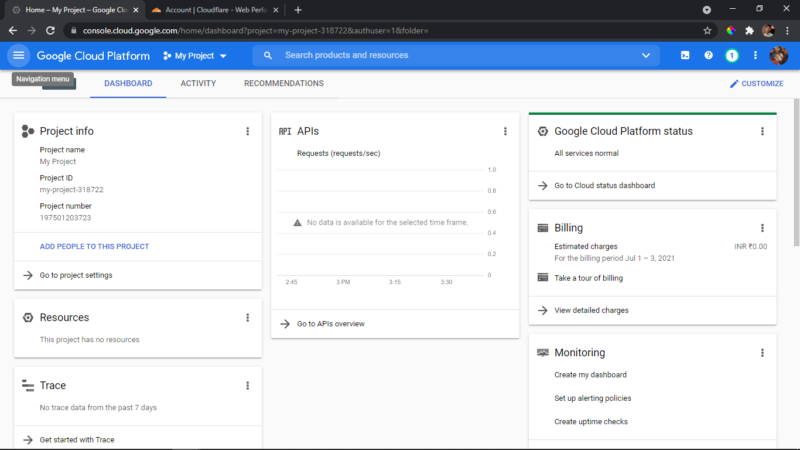
Now just check you are on the right project right now am in my other project so I am switching,
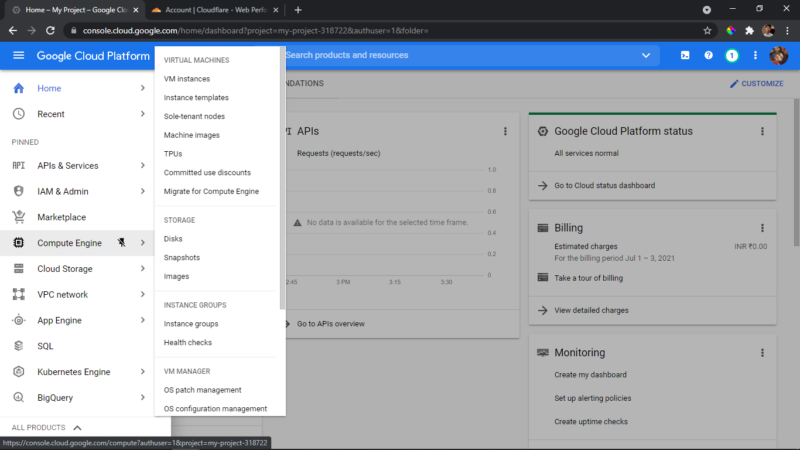
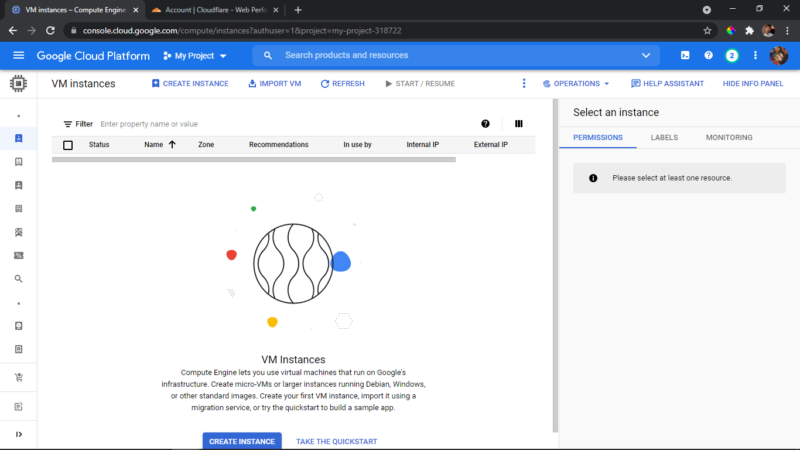
Now click on the menu icon, and go to compute engine and inside that vm instances
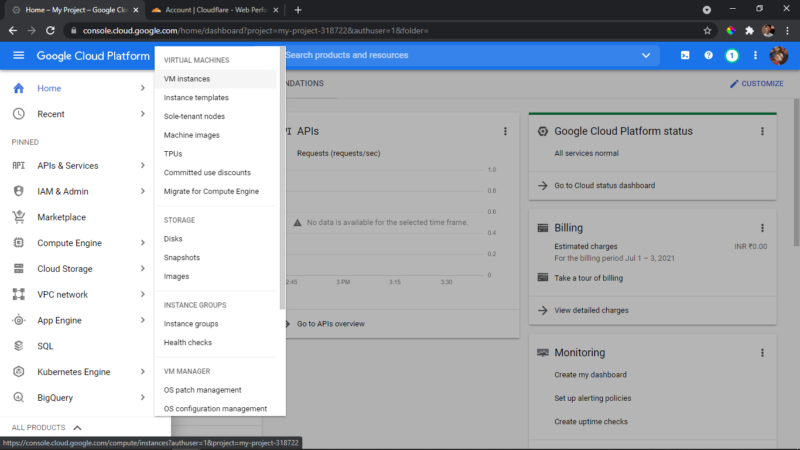
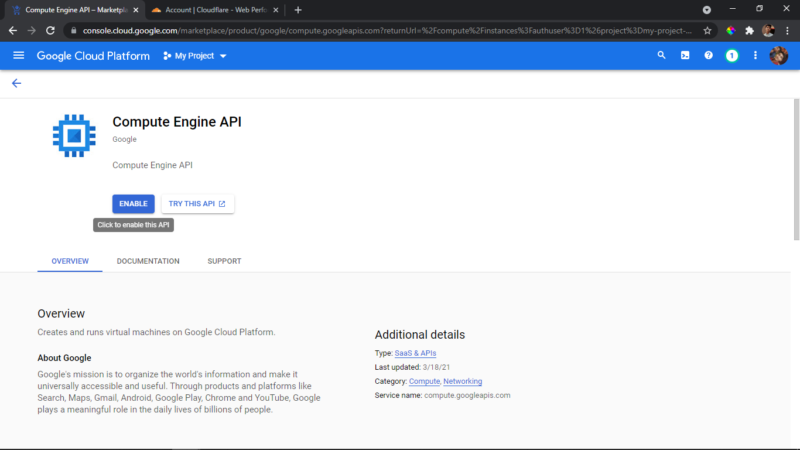
and enable it for our gcp project
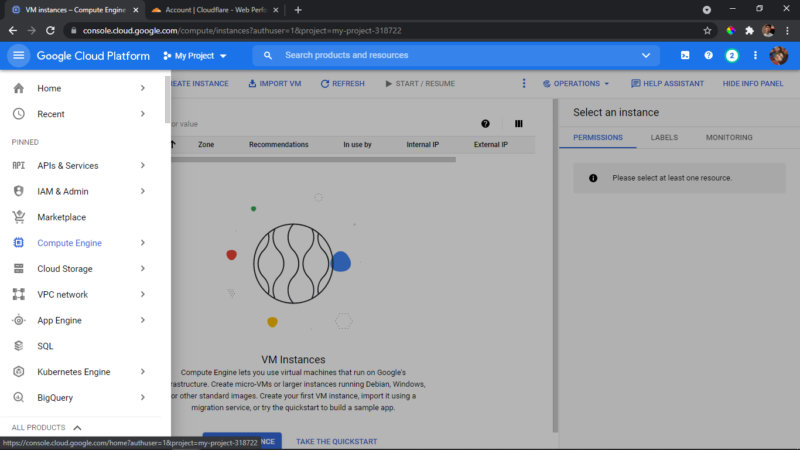
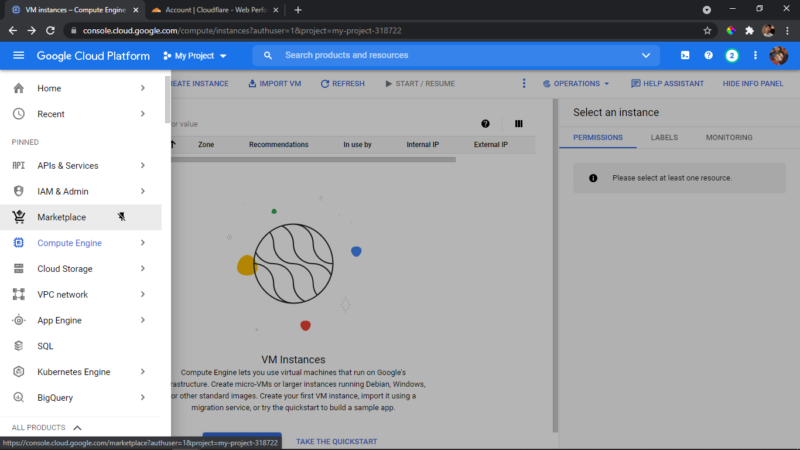
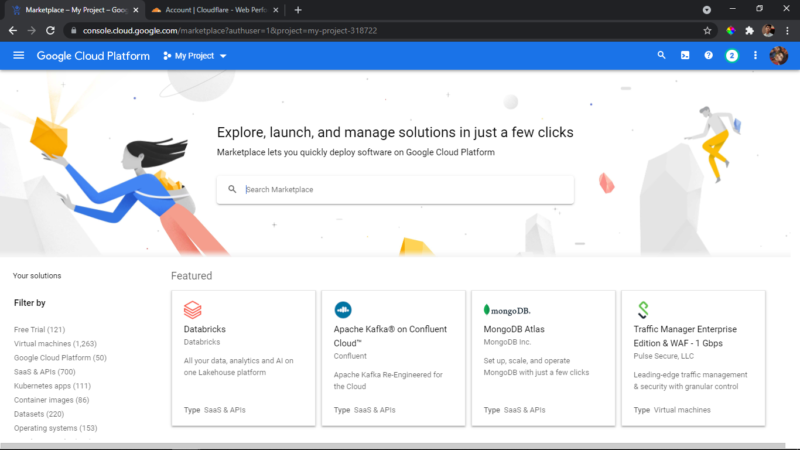
Now again open the menu and go to the marketplace it should open a new page
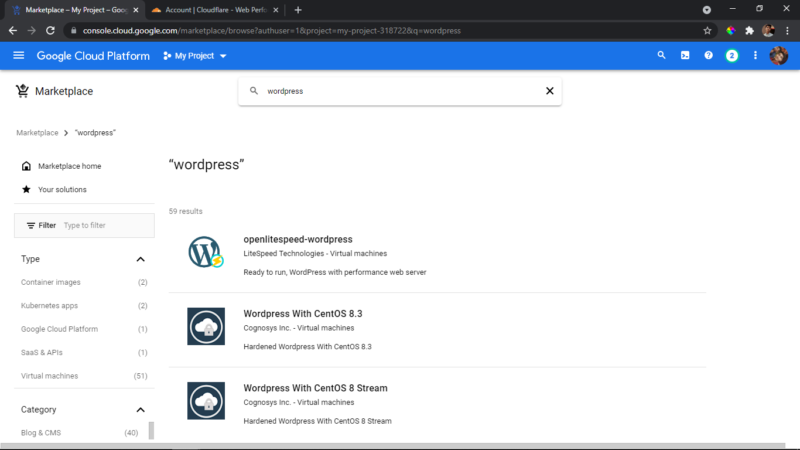
and type wordpress and it should load and show up, click on the first option using openlitespeed if you use this then your website will be way quicker
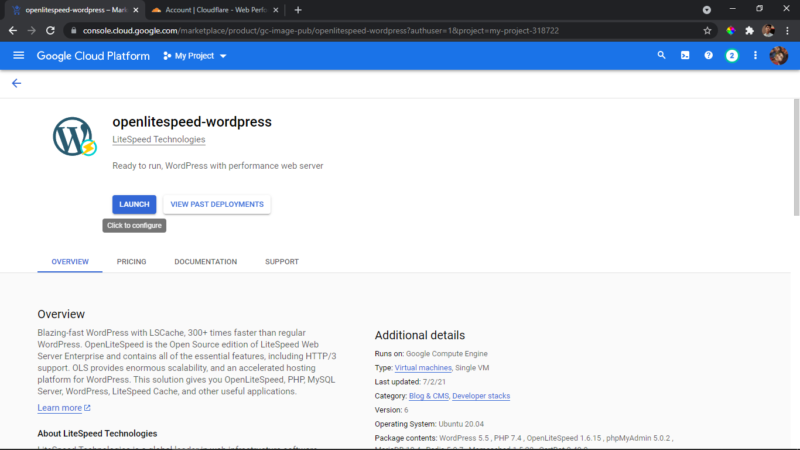
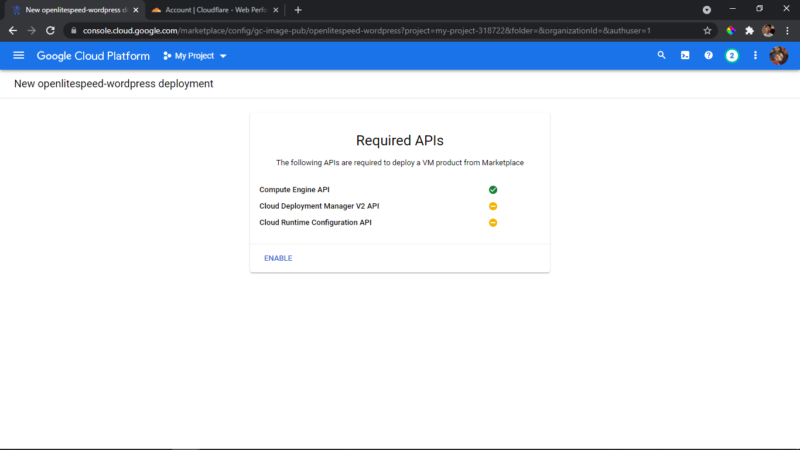
And click on launch and enable all the thing api it requires.
Now here it is important if you want a forever free tier make sure you setup everything as i did.
Make sure the zone is us-central1-a and set the series to n1 and machine type to f1-micro
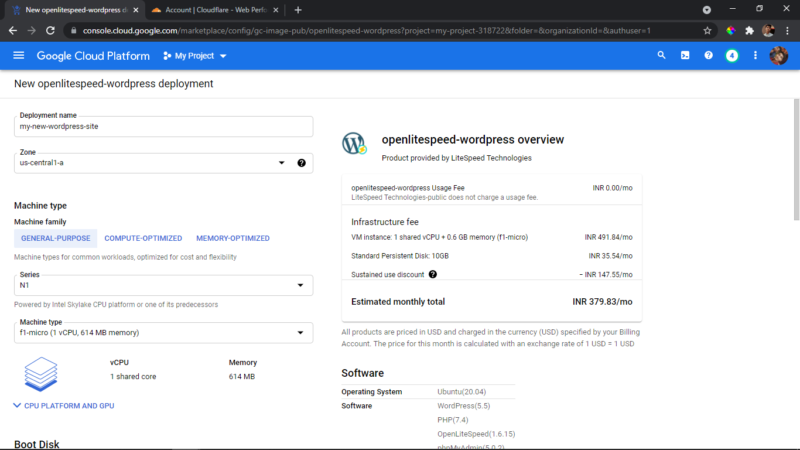
Setup with 30GB of storage. It is free upto that limit which is awesome right,
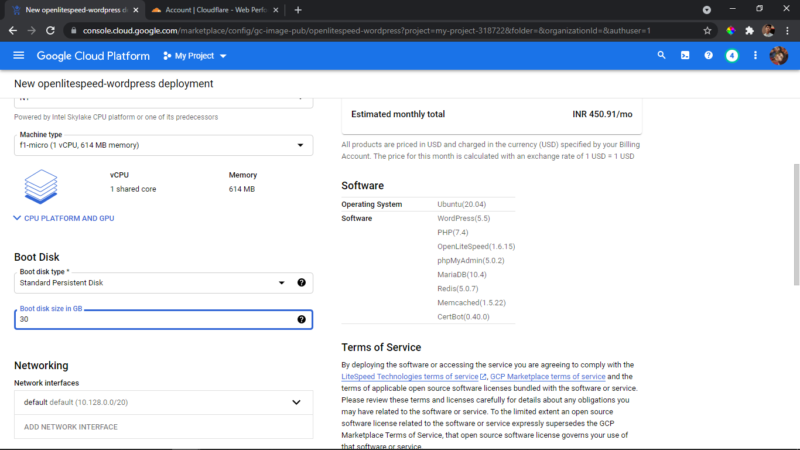
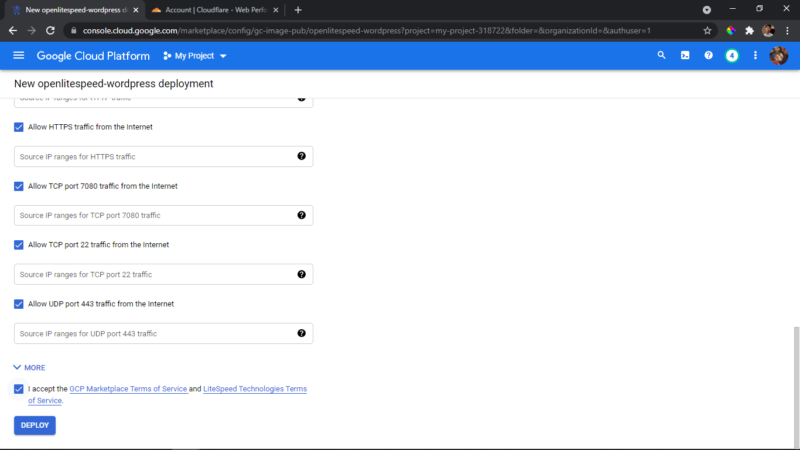
And finally click on deploy.
Now please wait
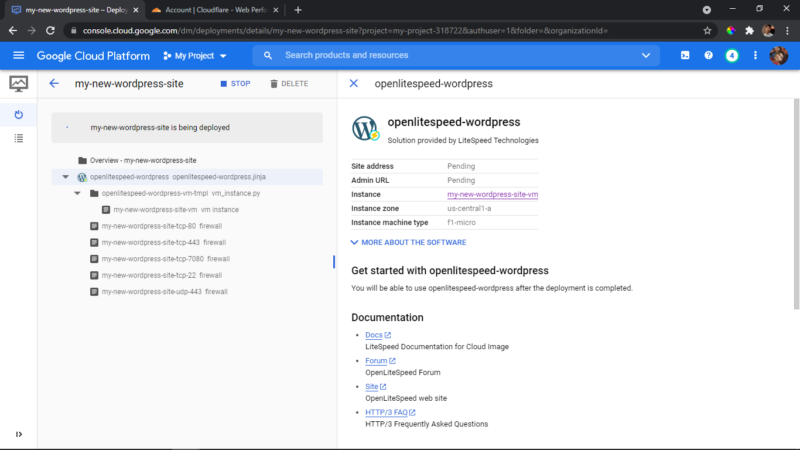
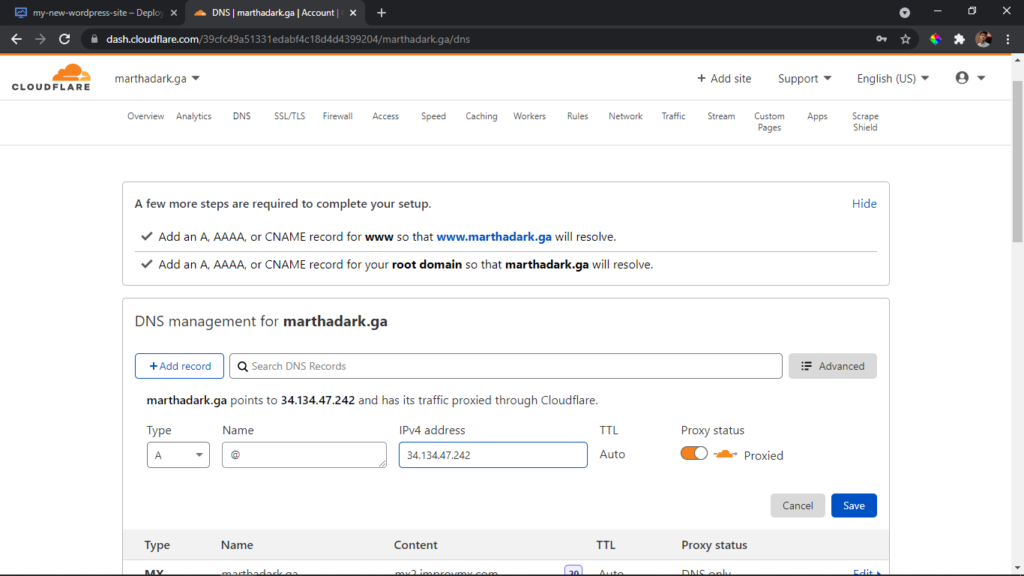
Before doing anything copy the ip address and paste it in your dns as what domain you want it to be in use a record and set ip to the address of our instance
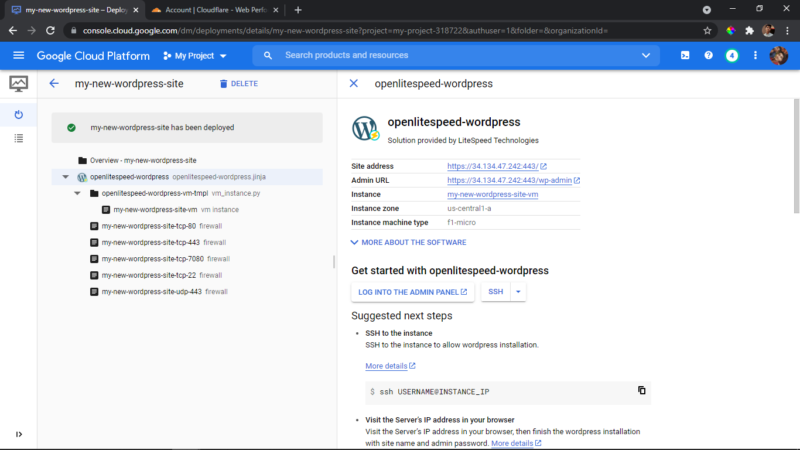
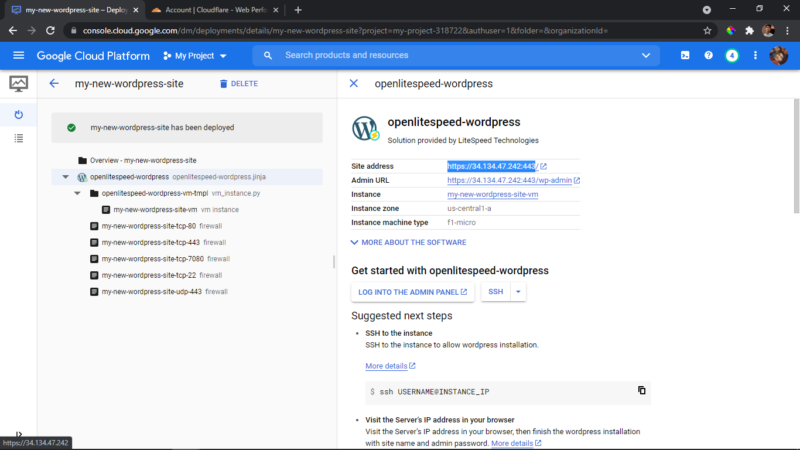
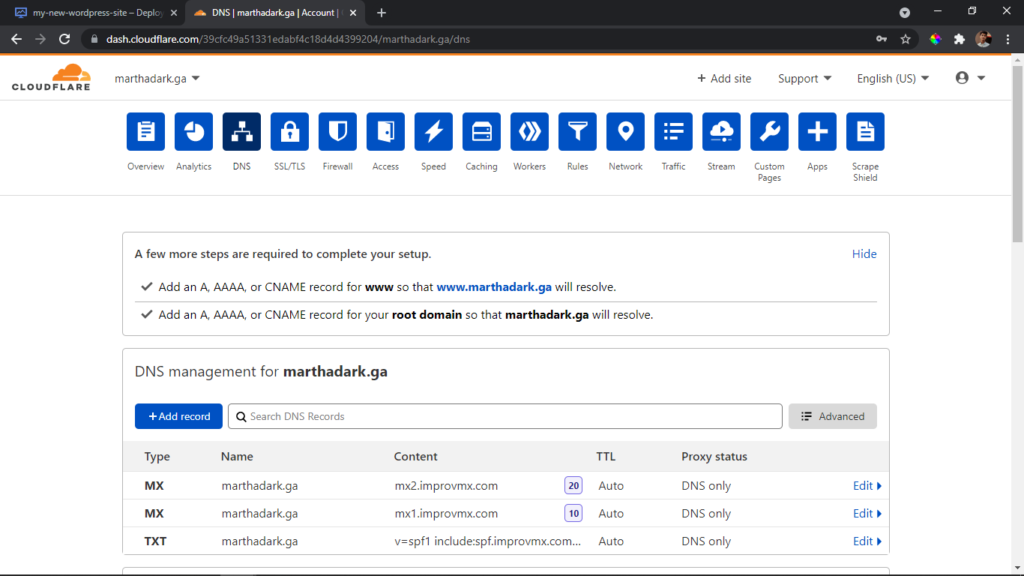
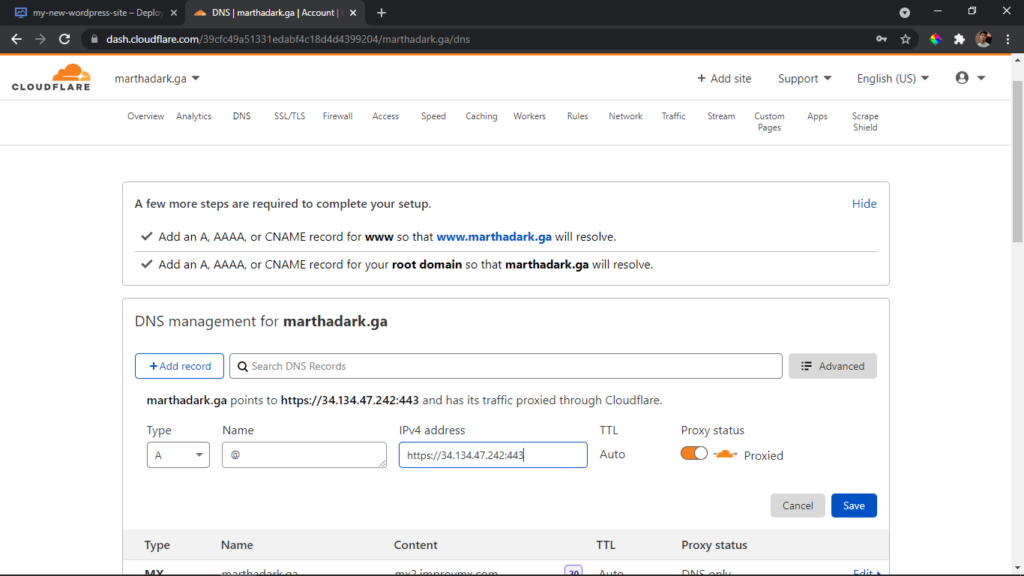
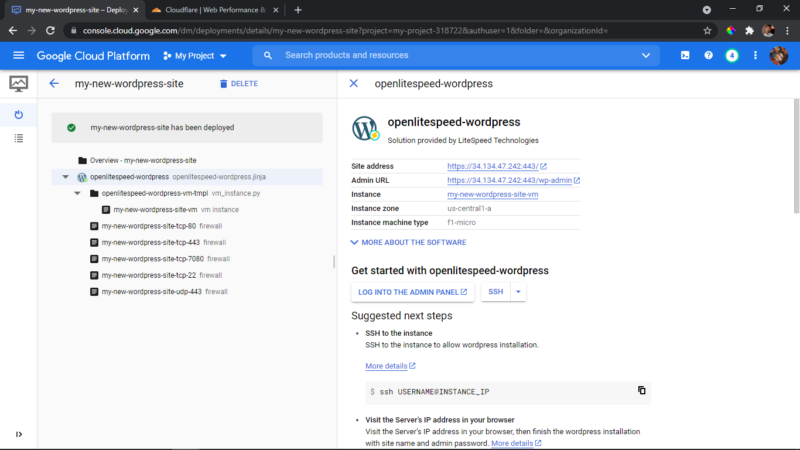
Now click on ssh button, a new window pops up. It takes a little time to load so please wait
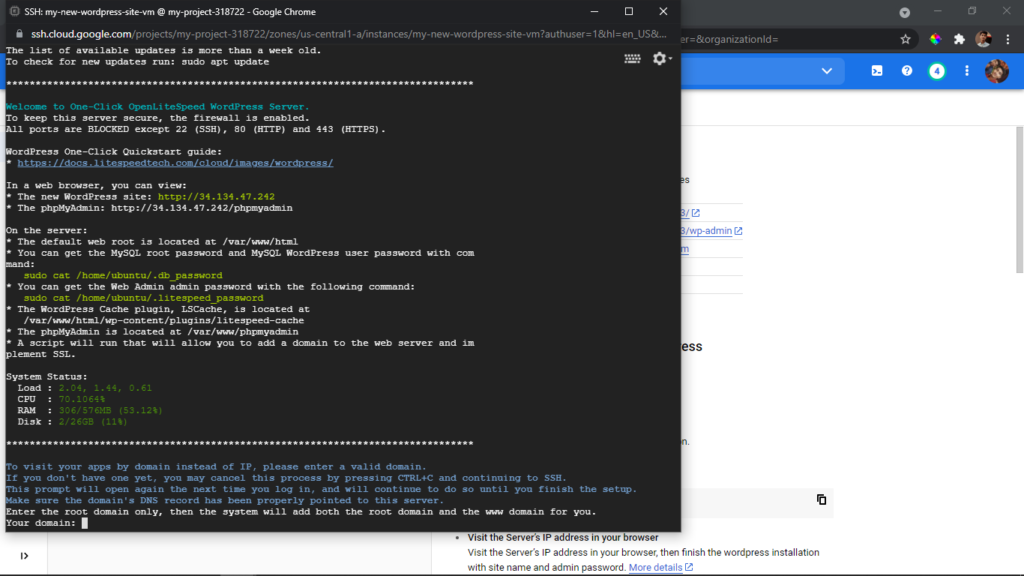
Now enter your domain address that you setup (ex: forum.artisticprogrammer.com)
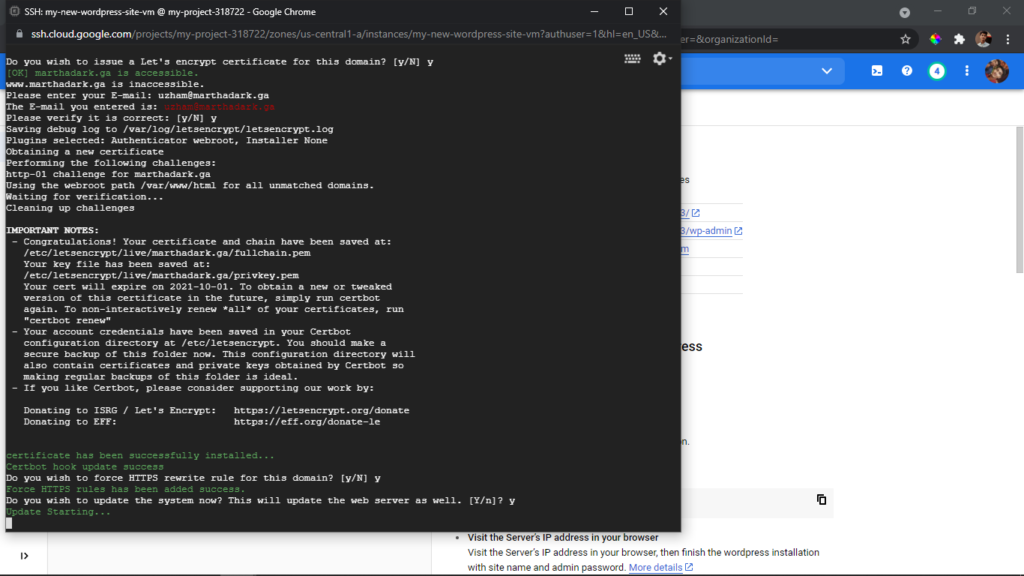
then type y twice and enter your email and again type y
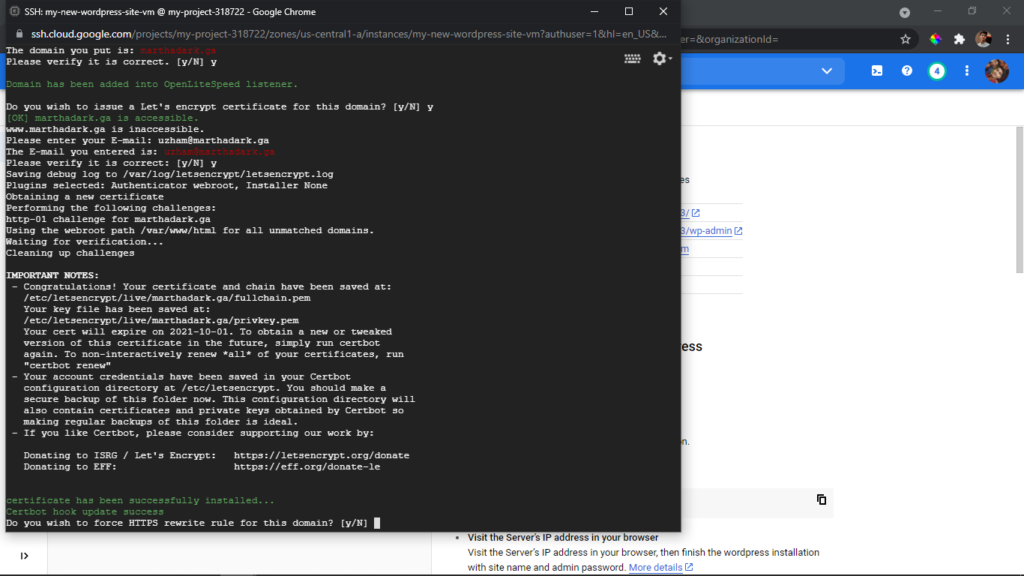
Now you have to type y twice again for adding ssl certificate for free with letsencrypt and updating your server.
If it got stuck at 33% or something above in system update, no need to worry you can close that window open a new tab in the browser and type in your domain address
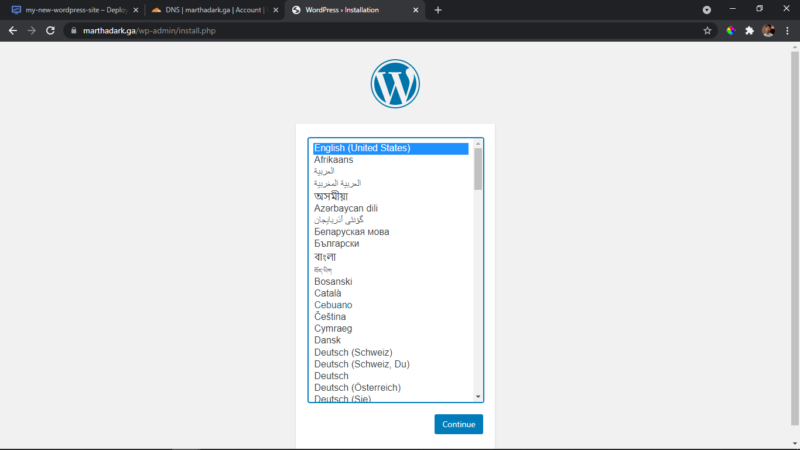
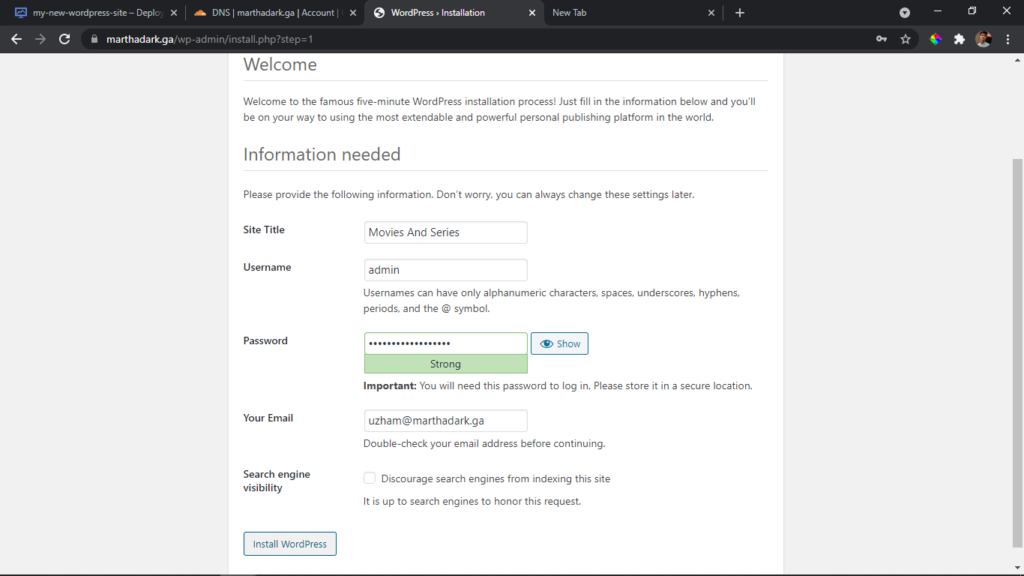
Click continue and choose your site title, admin username and password and email address and click install wordpress that should do the job. That's all then click log in
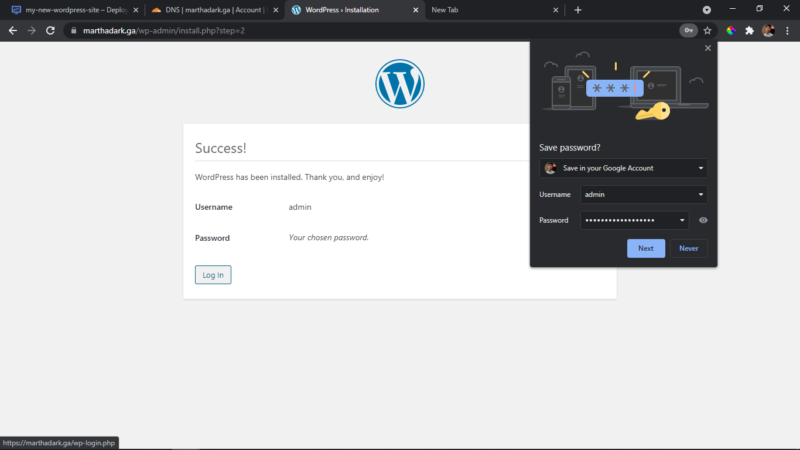
then once you log in you will see your wordpress dashboard and also you can visit your homepage.
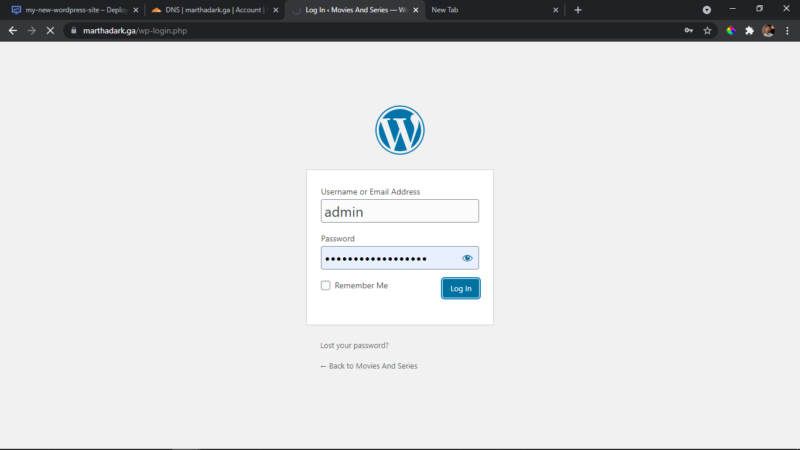
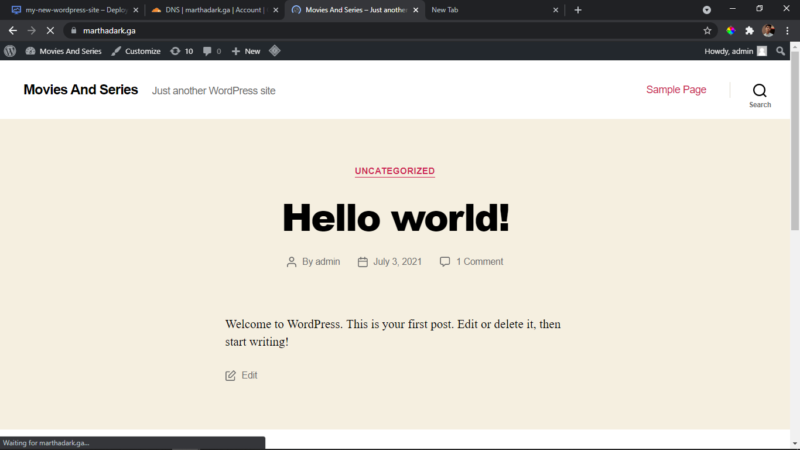
That's all for the whole wordpress setup, we have one more setup to complete.
Setting Up Custom Email Hosting
So, for this I am going to use zoho's email hosting as the our email hosting, they allow you to create upto 5 emails in a free account with 5gb of mails storage per user which is great if you are just starting out and they also have a nice UI for emails sending and receiving,
Watch this video you can use it as your reference while creating an account in zoho and guys one more announcement. we are creating our own youtube channel lots of content I have planned and also I am providing pre-written notes and slides on the crash course videos or full course videos.
https://www.youtube.com/watch?v=ns7EB8gkMhY
This is an awesome video on how to create zoho mail for free and soon in our channel also we will be posting a lot of content on this topic
Conclusion
There you go gang! we have created a forever free wordpress hosting that can handle upto 100,000 visitors per month or even more so, if you don't have high quality images being served or even lots of images.
That's it for the article guys, one most important thing. We are starting an youtube channel based on our blog but its completely project based and crash courses and stuff, Here is a sneak peak of what I am working on.
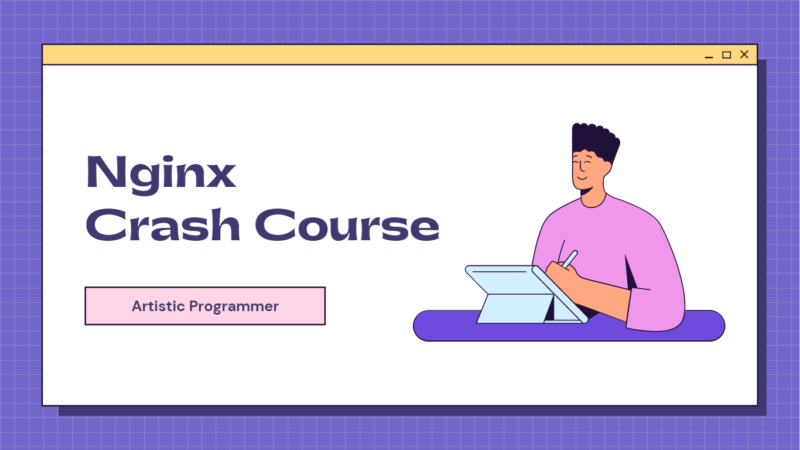
I am teaching with these premium slides and awesome animations, moreover we will be learning mostly with projects based courses.
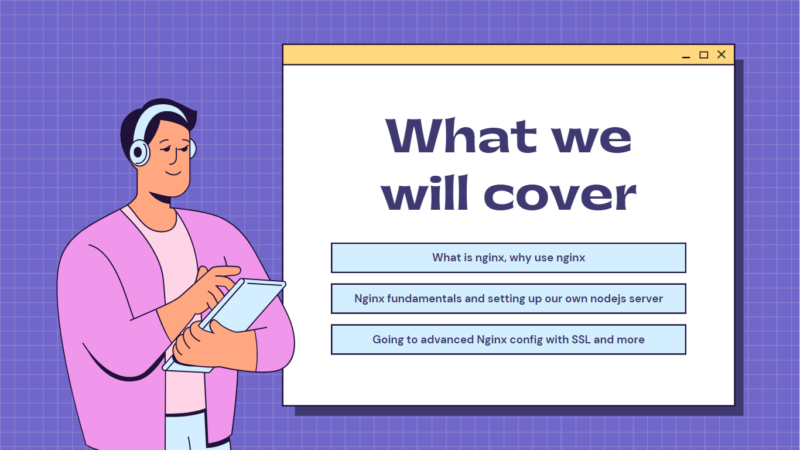
Because I feel like projects are the way you can learn properly, so that's it guys,
Trust me you will find alot of value in the content, and I am also providing pdf's of the notes of the crash courses.
Click here and subscribe to our channel. Show your support guys, and I will never let you guys down for the effort that you have given me.
Anyways Happy Hacking Guys!


